Applies to: Docker Compose single-container web apps · domestic ECS troubleshooting edition · optional GitHub Actions auto-deploy
Note: This is a generic deployment guide. Project names, directories, and repos in examples are placeholders. This site, qianna-site, is deployed on Vercel + Supabase—not the ECS approach in this article. If you are deploying another Dockerized project, follow the steps below.
0. Before You Start
0.1 What kind of project fits this guide?
This article is not tied to one product. It describes a common way to ship a class of web apps. If your project matches the traits below, you can deploy it with this guide:
- A
Dockerfileandcompose.yaml(ordocker-compose.yml) at the repo root - Frontend and backend served from one container, usually on a single port (e.g.
8000) - Secrets, database, and third-party APIs configured via
.env.docker/.env - On domestic ECS, you need to work around slow or timed-out pulls from Docker Hub, PyPI, or npm
Typical examples: internal tools, AI-assisted apps, admin dashboards, training/content platforms.
0.2 Recommended deployment path
Recommended: Linux (preinstalled) → install Docker → run the app with docker compose
Optional extension: Linux + Docker → Baota/Nginx reverse proxy to the app port → bind a domain and HTTPS
Not covered here: skipping Docker and hosting a frontend dist on Baota while running the backend manually (split deployment, usually higher maintenance cost)
When you buy Aliyun ECS, Alibaba Cloud Linux is already installed—you do not need to install Linux separately.
| Phase | Estimated time | Outcome |
|---|---|---|
| Install Docker + registry mirror | 10–20 min | docker / docker compose available |
| Upload code + build container | 15–30 min | Container Up (healthy) |
| Security group + browser check | 5 min | http://your-public-ip:<port> reachable |
| Domain + Baota proxy + HTTPS | Optional | https://your-domain reachable |
| Third-party APIs + GitHub Actions | Optional | External services / auto-deploy |
Part 1 · Purchase and log in to ECS
1.1 Buy a cloud server
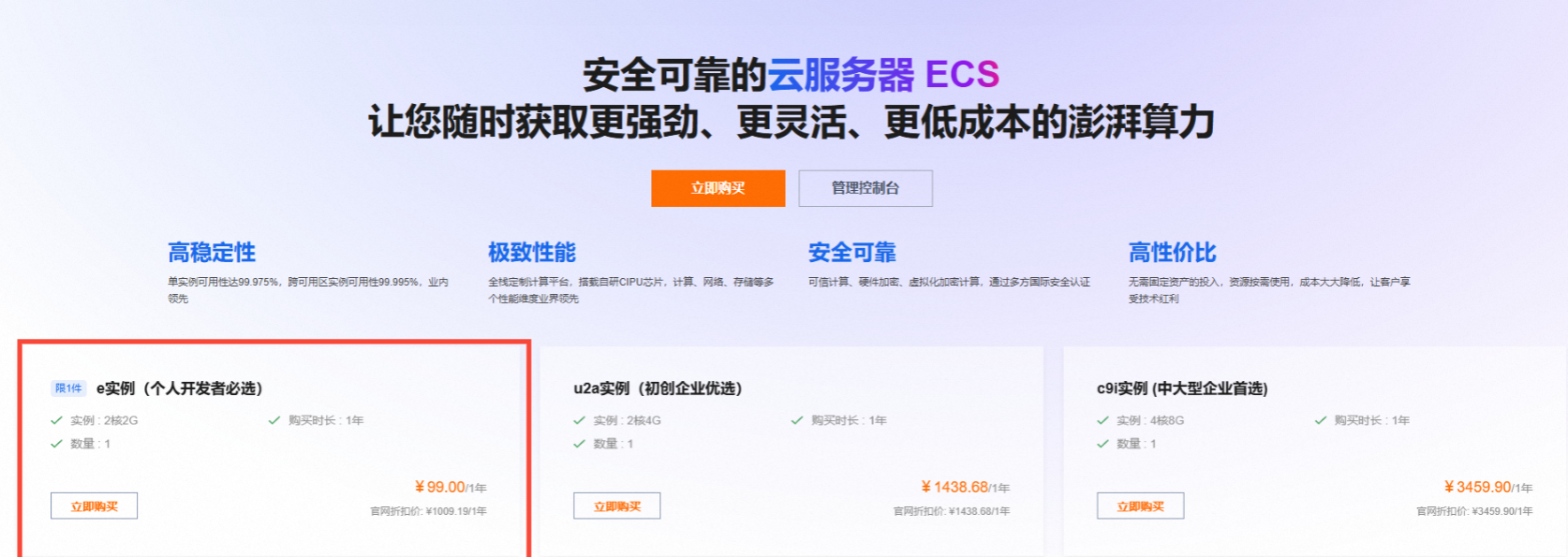
- Open the Aliyun ECS product page: https://www.aliyun.com/product/ecs
- Choose the personal developer e instance (example: 2 vCPU / 2 GB; pricing per Aliyun’s page)
- OS: Alibaba Cloud Linux 3
- Security group: allow 22 (SSH) at minimum; later add the app port (e.g.
8000); after binding a domain, add 80/443
1.2 Connect with Workbench
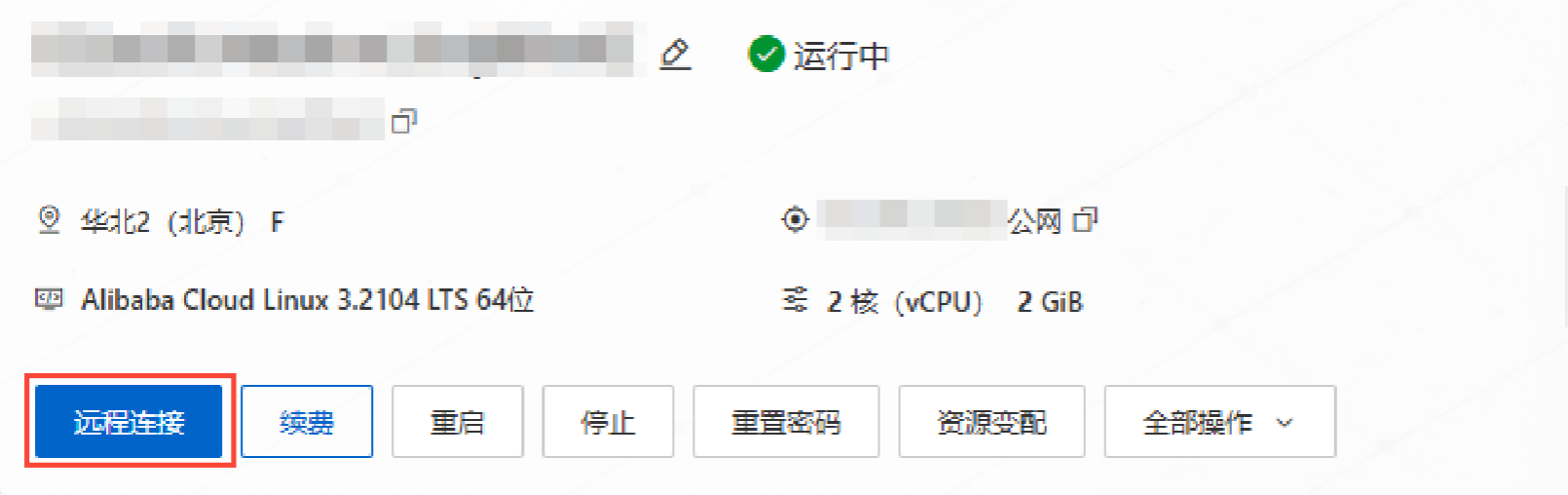
- ECS console → instance list
- Click Connect
- In the dialog, choose Workbench → Log in now
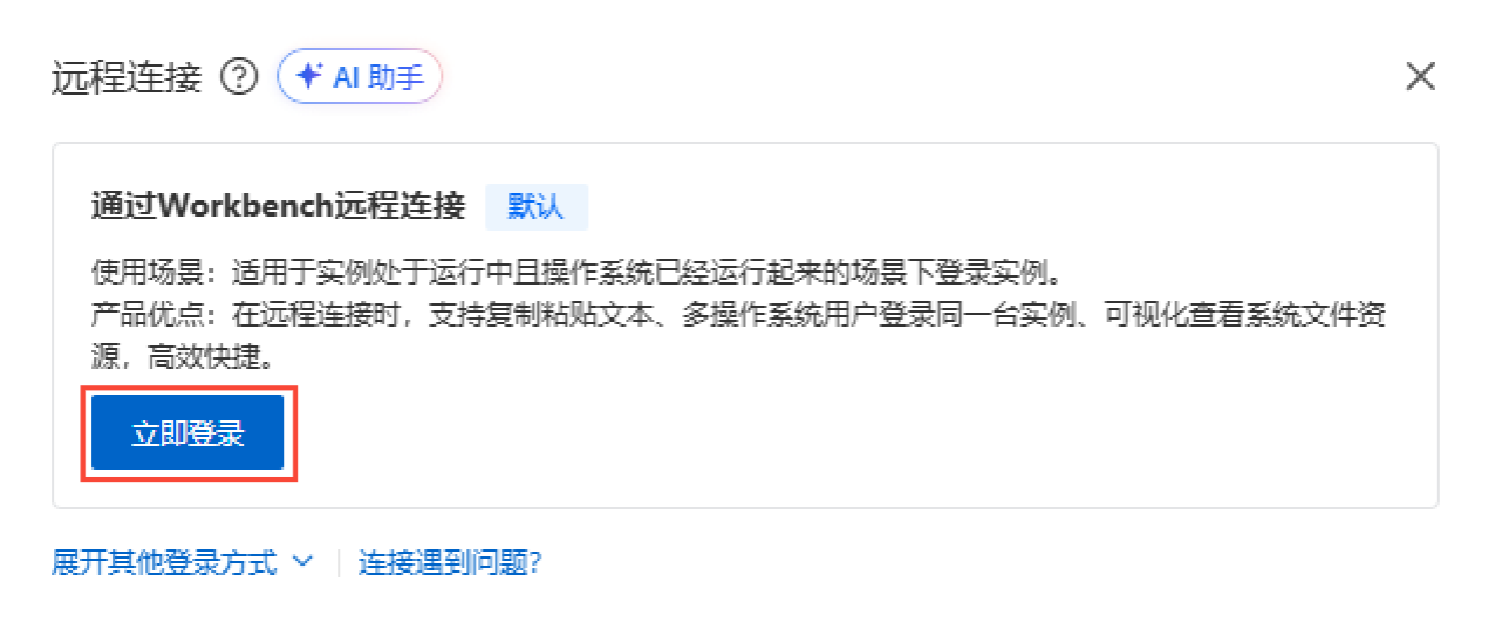
After login, the prompt looks like: [root@iZxxxx ~]#
Part 2 · Install Docker (steps 1–5)
Run these commands in Workbench one line at a time: copy the full line → Enter → wait until it finishes before the next.
Step 1 · Confirm OS version
cat /etc/os-release
Expect Alibaba Cloud Linux 3 with platform:al8.
Step 2 · Install Docker CE
2.1 Try Aliyun’s built-in repo first (may fail)
dnf install -y docker docker-compose-plugin
If you see No match for argument: docker-compose-plugin, switch to the Docker CE repo.
2.2 Add the Docker CE repo
wget -O /etc/yum.repos.d/docker-ce.repo https://mirrors.aliyun.com/docker-ce/linux/centos/docker-ce.repo
sed -i 's/$releasever/8/g' /etc/yum.repos.d/docker-ce.repo
Why change releasever to 8: Alibaba Cloud Linux 3 reports version 3, but Docker packages are organized under CentOS 8.
2.3 Install Docker + Compose plugin
dnf install -y docker-ce docker-ce-cli containerd.io docker-compose-plugin
Step 3 · Start and verify
systemctl start docker
systemctl enable docker
docker --version
docker compose version
Step 4 · Configure a Docker registry mirror
mkdir -p /etc/docker
cat > /etc/docker/daemon.json << 'EOF'
{
  "registry-mirrors": [
    "https://docker.m.daocloud.io"
  ]
}
EOF
systemctl daemon-reload
systemctl restart docker
docker info | grep -A 3 "Registry Mirrors"
You must see docker.m.daocloud.io for the mirror to be active.
Part 3 · Deploy the app (steps 6–10)
Step 6 · Get the code
Option A: git clone (when GitHub is reachable)
dnf install -y git
cd /opt
git clone <git-repo-url>
cd /opt/<project-dir>
Direct GitHub access from domestic ECS often times out—use Option B if clone fails.
Option B: local zip + Workbench upload (recommended on domestic ECS)
On the machine where your repo lives:
git archive --format=zip -o app.zip HEAD
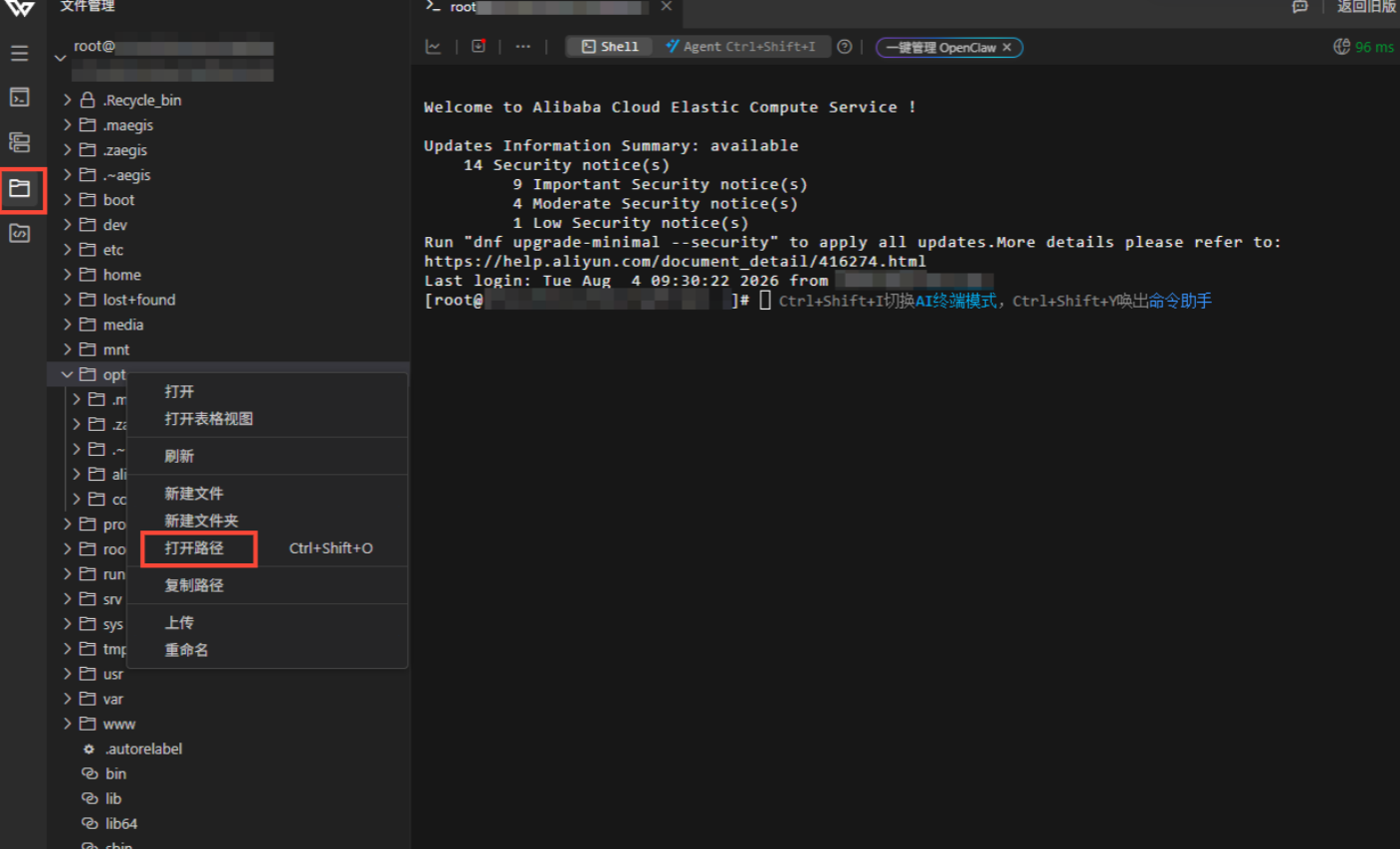
In Workbench’s file manager, go to /opt → right-click → upload → select app.zip
Confirm size: ls -lh /opt/app.zip (must not be 0)
cd /opt
mkdir -p <project-dir>
unzip -o app.zip -d <project-dir>
cd /opt/<project-dir>
ls
You should see Dockerfile and compose.yaml. If unzip is missing: dnf install -y unzip
Step 7 · Pull base images and patch Dockerfile (required in China)
For Python + Node multi-stage builds, pre-pull images and rewrite FROM lines as needed.
cd /opt/<project-dir>
# Adjust to match your Dockerfile base images
docker pull docker.m.daocloud.io/library/python:3.12-slim-bookworm
docker pull docker.m.daocloud.io/library/node:20-bookworm-slim
sed -i 's|FROM node:|FROM docker.m.daocloud.io/library/node:|' Dockerfile
sed -i 's|FROM python:|FROM docker.m.daocloud.io/library/python:|' Dockerfile
# Python projects: add Tsinghua pip mirror
sed -i 's|RUN pip install --no-cache-dir -r requirements.txt|RUN pip install --no-cache-dir -r requirements.txt -i https://pypi.tuna.tsinghua.edu.cn/simple --trusted-host pypi.tuna.tsinghua.edu.cn --default-timeout=300 --retries=10|' Dockerfile
grep -E '^FROM |pip install' Dockerfile
Step 8 · Configure environment variables
Copy .env.docker.example (or .env.example) to .env.docker and fill in values per comments.
cd /opt/<project-dir>
cp .env.docker.example .env.docker
SECRET=$(openssl rand -hex 32)
# Variable names depend on your project
sed -i "s|AUTH_JWT_SECRET=replace-with-a-long-random-secret|AUTH_JWT_SECRET=$SECRET|" .env.docker
sed -i "s|APP_BASE_URL=.*|APP_BASE_URL=http://your-public-ip:<port>|" .env.docker
grep -E '^(AUTH_JWT_SECRET|APP_BASE_URL)=' .env.docker
Security
- Keep JWT, database, and third-party API secrets safe—never leak them or commit them to a public repo
- Payment, email, and other unused integrations can stay as example values
- After binding a domain, set
APP_BASE_URLtohttps://your-domain
Step 9 · Build and start
First build takes about 15–30 minutes. Use nohup so Workbench disconnects do not stop the build.
cd /opt/<project-dir>
nohup docker compose up --build -d > /tmp/<app-name>-build.log 2>&1 &
tail -f /tmp/<app-name>-build.log
- Success: log shows
Container <container-name> Started(or similar healthy state) Ctrl+Conly exits log follow; build keeps running- After reconnect:
tail -30 /tmp/<app-name>-build.log
Step 10 · Security group and verification
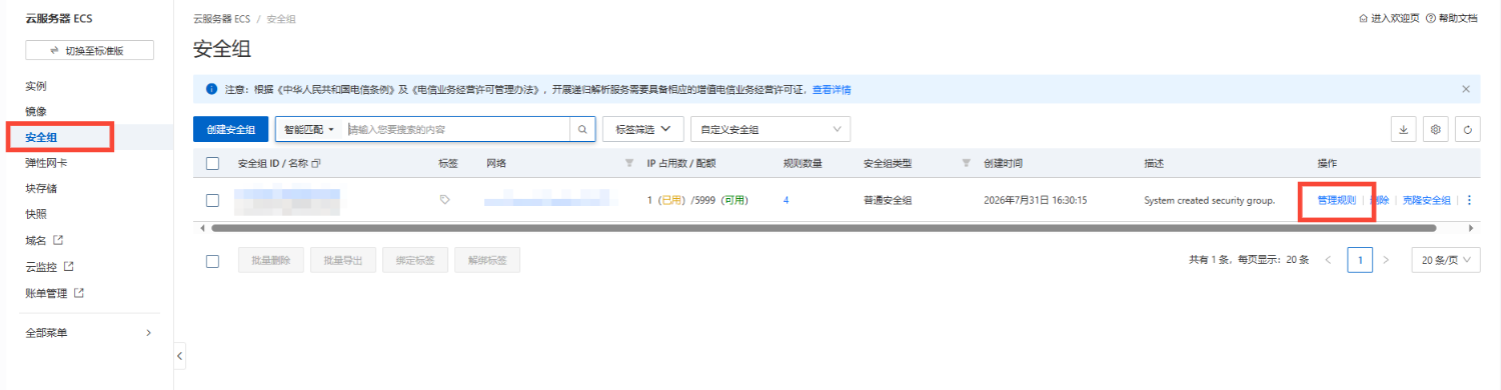
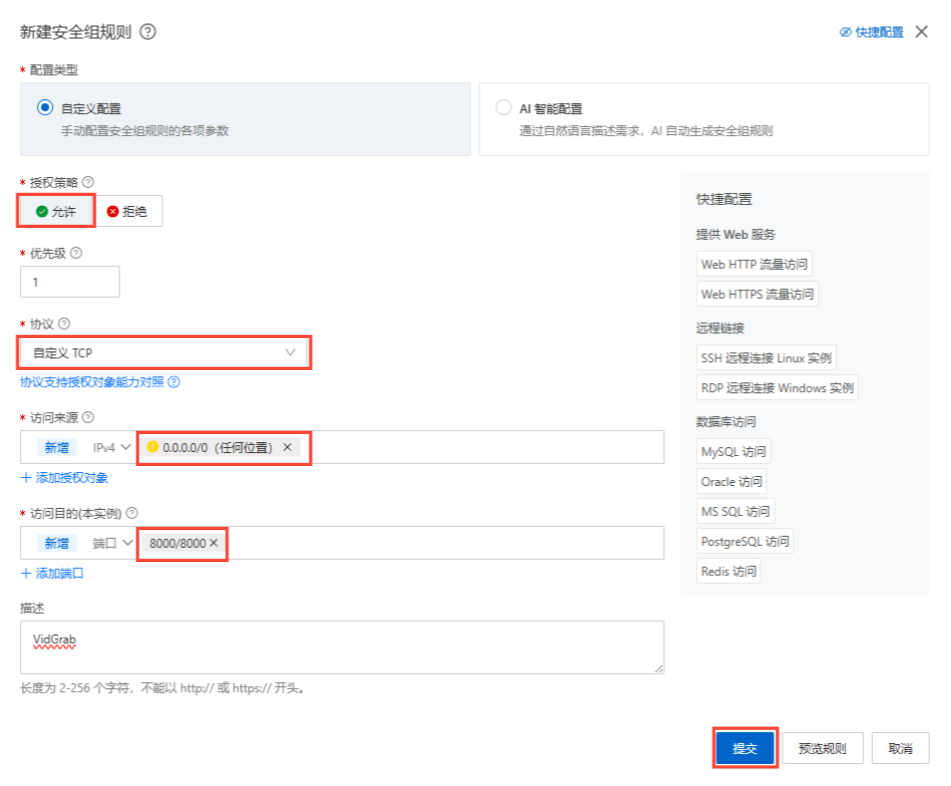
After the container is up, open the app port (e.g. <port>) in the Aliyun security group so browsers can reach it.
- ECS console → Security group → group linked to your instance → Manage rules
- Inbound → Add rule
- Allow; custom TCP; port
<port>/<port>; source0.0.0.0/0

Security:
0.0.0.0/0is fine for first verification. For long-term use, restrict source IPs, move to domain + HTTPS, and consider WAF/firewall rules.
docker compose -f /opt/<project-dir>/compose.yaml ps
curl -s http://127.0.0.1:<port>/api/health
Health check path varies by project: /api/health, /health, or /.
| Check | Expected |
|---|---|
docker compose ps | STATUS Up (healthy) |
curl health check | JSON or HTTP 200 |
| Browser | http://your-public-ip:<port> loads the homepage |
Part 4 · Day-to-day operations
cd /opt/<project-dir>
docker compose ps
docker compose logs -f
docker compose restart
docker compose down        # do not add -v
Part 5 · Share on the public internet
After deploy, share http://your-public-ip:<port>/ with testers. Public IP is on the ECS instance detail page.
Before sharing: no default weak test passwords; no debug endpoints exposed. For production, prefer domain + HTTPS (next section).
Part 6 · Domain and Baota reverse proxy (optional)
Once IP + port works, install Baota panel on the same ECS to serve the app on a domain with HTTPS. The app still runs under docker compose; Baota forwards domain traffic to the container port.
6.1 DNS
- At your registrar, add an A record for
@(orwww) pointing to your ECS public IP - Wait for propagation (minutes to hours); verify with
ping your-domainin a terminal
6.2 Security group: open 80 / 443
ECS console → Security group → inbound rules:
| Protocol | Port | Purpose |
|---|---|---|
| TCP | 80 | HTTP (certificate + HTTPS redirect) |
| TCP | 443 | HTTPS |
After reverse proxy is set up, the app port (e.g. 8000) need not be public—ECS internal access is enough.
6.3 Baota: site + reverse proxy
- Install Baota (official install script), log in
- Website → Add site → enter domain; PHP: static only or none
- Open the site → Reverse proxy → Add reverse proxy
- Target URL:
http://127.0.0.1:<port>(must matchcompose.yamlport mapping) - Send domain:
$host(default)
- Target URL:
- SSL → Let's Encrypt → issue cert and enable Force HTTPS
6.4 Sync app config
cd /opt/<project-dir>
sed -i "s|APP_BASE_URL=.*|APP_BASE_URL=https://your-domain|" .env.docker
docker compose up -d --force-recreate
Open https://your-domain in a browser. Blank page or 502: on the ECS terminal run curl http://127.0.0.1:<port>/ to confirm the container, then check the proxy target port.
Part 7 · Third-party APIs (optional)
If the app uses LLM, SMS, object storage, etc., append keys to .env.docker and recreate the container.
cd /opt/<project-dir>
vi .env.docker
# Append variables, e.g.:
# DEEPSEEK_API_KEY=sk-your-key
# DASHSCOPE_API_KEY=sk-your-key
docker compose up -d --force-recreate
curl -s http://127.0.0.1:<port>/api/health
After editing .env.docker, you must use --force-recreate or the container keeps old env vars.
Part 8 · GitHub Actions auto-deploy (optional)
After the first manual deploy, pushing to main can rsync code and rebuild with docker compose on the server.
8.1 Push workflow from your local repo
cd <local-project-dir>
git add .github/workflows/deploy.yml scripts/deploy-ecs.sh
git commit -m "add GitHub Actions ECS deploy"
git push origin main
8.2 Create deploy user + SSH key on the server
useradd -m -s /bin/bash deploy
usermod -aG docker deploy
chown -R deploy:deploy /opt/<project-dir>
dnf install -y rsync
On your local machine (PowerShell), generate a key and add the public key to /home/deploy/.ssh/authorized_keys:
ssh-keygen -t ed25519 -C "github-actions-deploy" -f $env:USERPROFILE\.ssh\github_actions_deploy -N '""'
Never commit the private key to Git or share it with others.
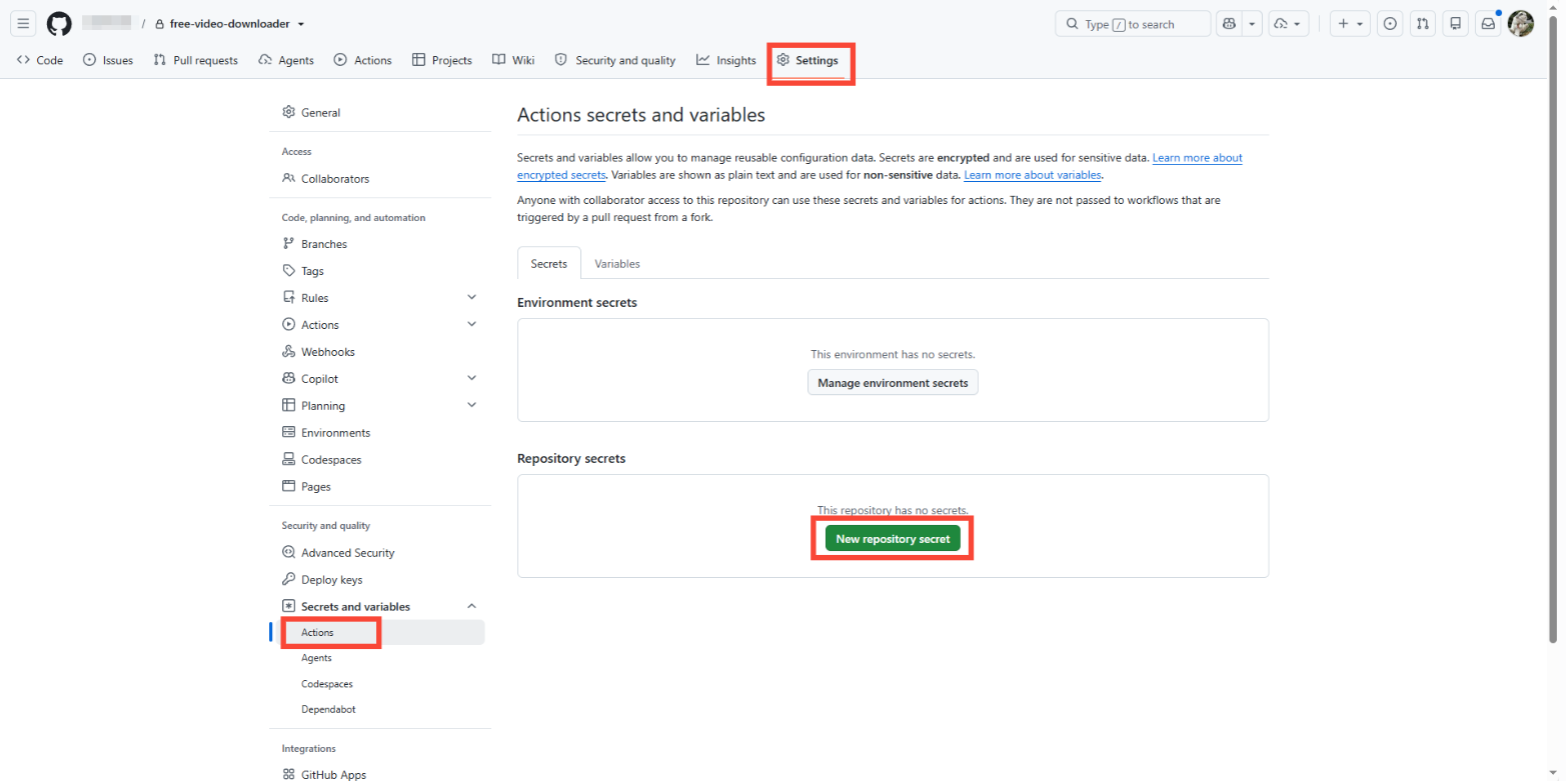
8.3 GitHub Secrets
Repo → Settings → Secrets and variables → Actions → New repository secret
| Secret | Example | Description |
|---|---|---|
SERVER_HOST | your-public-ip | ECS public IP |
SERVER_PORT | 22 | SSH port |
SERVER_USER | deploy | Deploy user |
SERVER_TARGET | /opt/<project-dir> | Project path on server |
SERVER_SSH_KEY | full private key | Contents of github_actions_deploy |
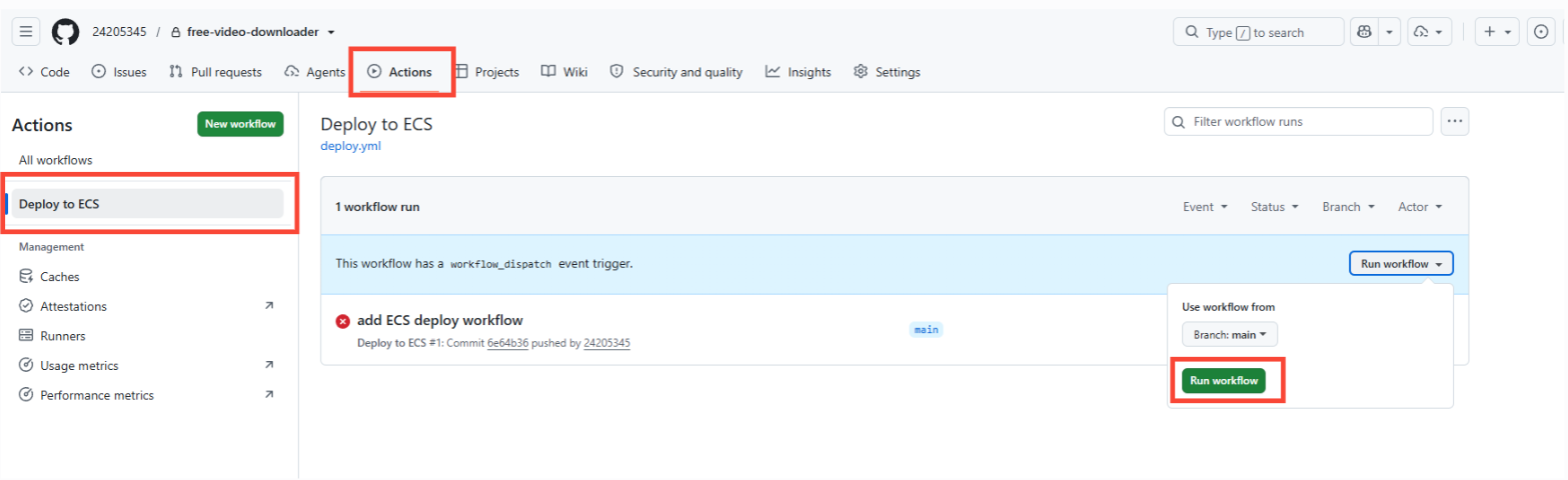
8.4 Manually trigger Actions to verify
Actions → your deploy workflow → Run workflow → branch main → Run workflow
docker compose -f /opt/<project-dir>/compose.yaml ps
curl -s http://127.0.0.1:<port>/api/health
Later updates: git push origin main
Appendix A · Placeholder reference
The body uses placeholders so you can reuse this guide across projects. Example values below are fictional—replace with your own:
| Placeholder | Meaning | Example (fictional) |
|---|---|---|
<app-name> | Public app/service name | my-app |
<port> | Container TCP port | 8000 |
<project-dir> | Directory name under /opt | my-app |
/opt/<project-dir> | Full deploy path on server | /opt/my-app |
<git-repo-url> | Git remote URL | https://github.com/<user>/<repo>.git |
app.zip | Local zip filename | my-app.zip |
<container-name> | container_name in compose | my-app |
/tmp/<app-name>-build.log | Background build log | /tmp/my-app-build.log |
APP_BASE_URL | Public app URL | http://your-public-ip:8000 |
AUTH_JWT_SECRET | Auth secret | generate with openssl rand -hex 32 |
| Health check path | HTTP path for smoke test | /api/health |
| Third-party API | Optional external keys | DEEPSEEK_API_KEY, etc. |
| GitHub workflow | Actions workflow name | Deploy to ECS |
SERVER_TARGET | Actions sync target | /opt/my-app |
| SSH key filename | Dedicated Actions key | github_actions_deploy |
Replace placeholders in the body (e.g. <port>, <project-dir>) with values from this table. For another project, change the instance values only—the step order stays the same.
Appendix B · Common errors
| Symptom | Fix |
|---|---|
docker-compose-plugin not found | Docker CE repo + sed releasever to 8 |
| Image pull timeout | DaoCloud mirror + patch Dockerfile FROM |
| pip Read timed out | Tsinghua pip mirror in Dockerfile |
app.zip size is 0 | Delete and re-upload |
| Browser cannot connect | Security group allows <port> |
| Third-party API not applied | Add keys, then docker compose up -d --force-recreate |
| Actions Permission denied | Check deploy user authorized_keys |
| Domain returns 502 | Container running; proxy port matches compose.yaml |
| HTTPS cert fails | A record points to ECS IP; port 80 reachable from internet |